
Object storage for macOS
S3 and Azure Blob Storage
in one native Mac app.
Bucketeer browses, transfers, mounts and syncs your buckets on Amazon S3, Azure Blob Storage and every S3-compatible service. Your credentials stay in the macOS Keychain, and no Bucketeer server sits in between.
- macOS 14 or later
- Nine provider presets
- No account, no tracking
- 20 languages
Screenshots show demo data.
Why Bucketeer
Object storage that feels like part of your Mac
Bucketeer is written in Swift and SwiftUI and uses what macOS already has: Finder, Quick Look, the Keychain, Touch ID, Shortcuts and Spotlight.
01
One app for S3 and Azure
AWS S3, Azure Blob Storage and seven more presets, plus any S3-compatible endpoint such as MinIO. Accounts from different providers sit side by side in one sidebar.
02
Built into macOS
Buckets as drives in Finder, Quick Look previews, drag and drop with Finder, a menu bar mode, Shortcuts and Siri actions and bucketeer:// links.
03
Private by design
No Bucketeer server, no user account, no analytics. The app talks only to the storage endpoints you configure and to Apple for purchases.
Providers
Which storage services does Bucketeer support?
Bucketeer has presets for nine providers. Custom covers MinIO and any other service that speaks the S3 API, with path-style addressing where the provider needs it.
- Amazon S3
- Azure Blob Storage
- Cloudflare R2
- Backblaze B2
- Wasabi
- DigitalOcean Spaces
- Storj
- Civo Object Store
- Custom S3 endpoint, for example MinIO
Features
Everything you do with buckets, in one window
From the first account to Finder drives and sync jobs. Features marked Pro need Bucketeer Pro, everything else is part of the app.
01 / 09
Browse buckets like folders in Finder
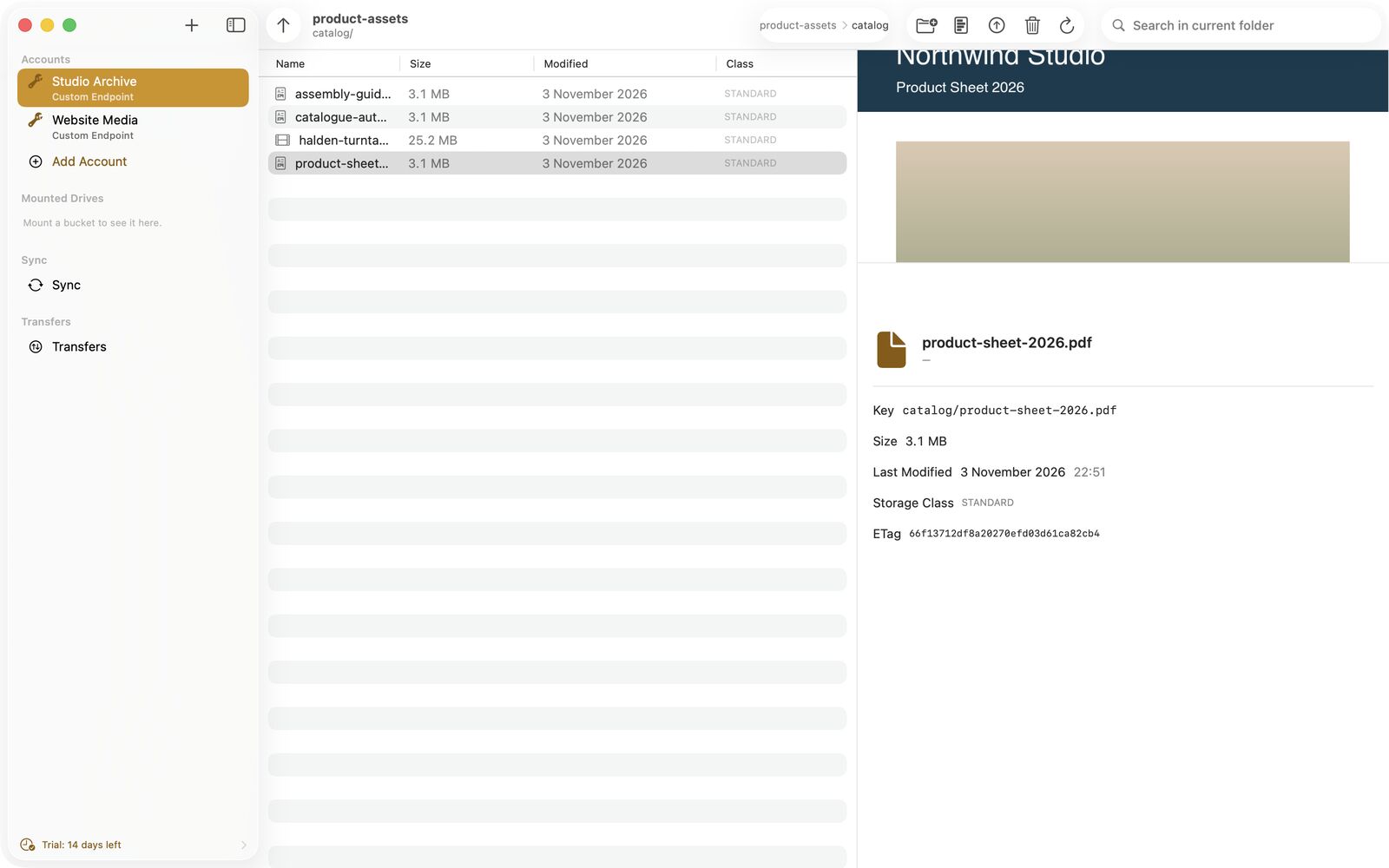
A three-pane window shows your accounts, the objects of the current folder and the details of the selected file, with a Quick Look preview for every file type macOS can show.
- Breadcrumbs, search in the current folder and an up button
- Drag and drop between Finder and Bucketeer in both directions
- New folder, rename, delete and download from the context menu
- Copy a bucketeer:// link to any object
02 / 09
Nine providers, one Keychain
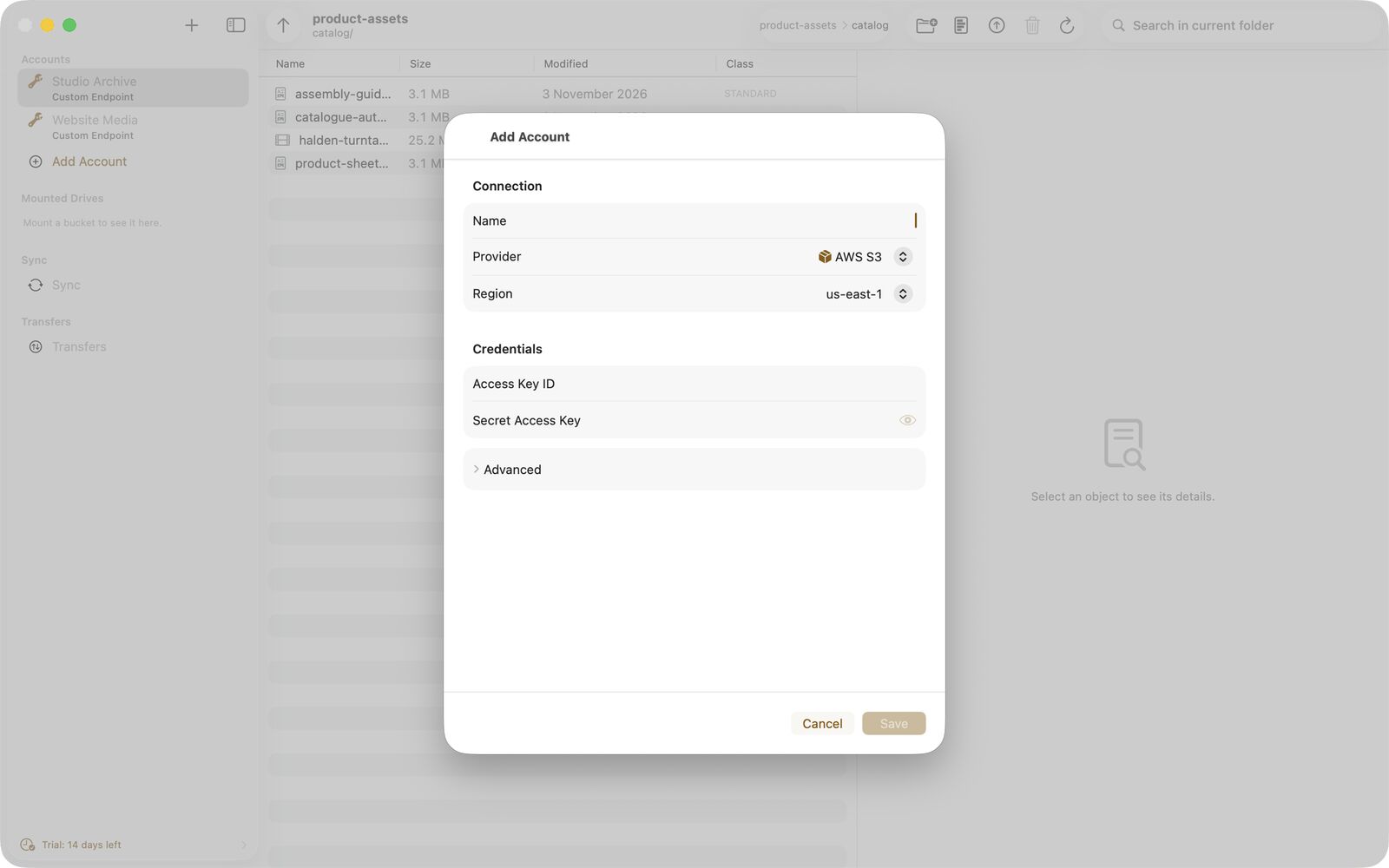
Pick a provider, enter the region or endpoint and your keys, test the connection and save. Credentials go into the macOS Keychain on this Mac, never into the app's database.
- Presets for AWS S3, Azure Blob Storage, Civo, Cloudflare R2, Backblaze B2, Wasabi, DigitalOcean Spaces, Storj and Custom
- Path-style addressing where the provider needs it
- Stored secrets are shown again only after Touch ID or your Mac password
- Hardware key as a technical preview: Settings lists connected smart-card readers
03 / 09 Pro
Sync jobs and watch folders
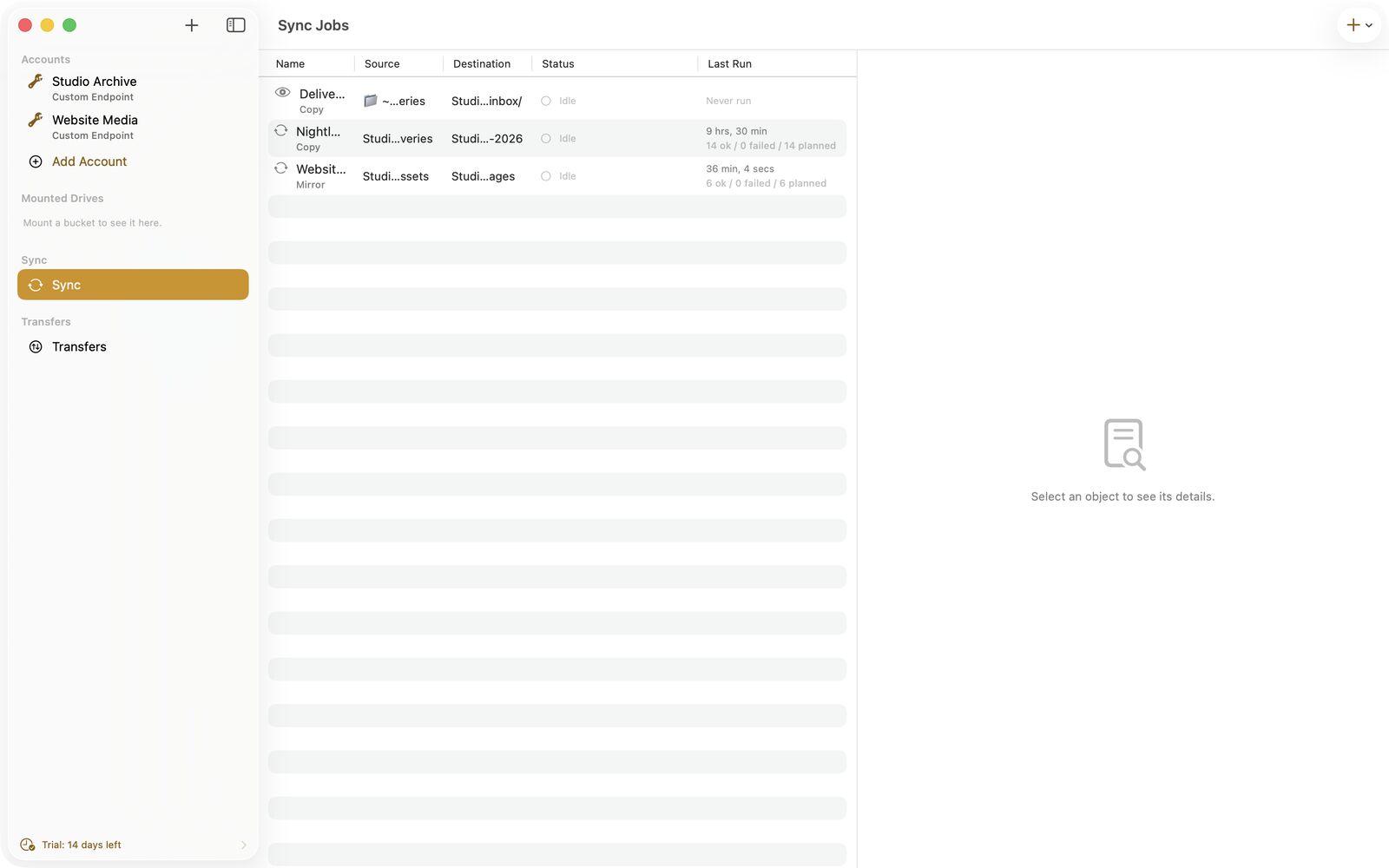
A sync job copies, moves or mirrors between two buckets, across accounts and providers, S3 and Azure included, or between a local folder and a bucket. A watch folder uploads every new file in a local folder.
- Run a job by hand, at launch, every few minutes or when the local folder changes
- Copy to another account runs server-side when both accounts share provider and endpoint
- Menu bar mode keeps jobs and drives running with the main window closed
04 / 09
Client-side encryption per bucket
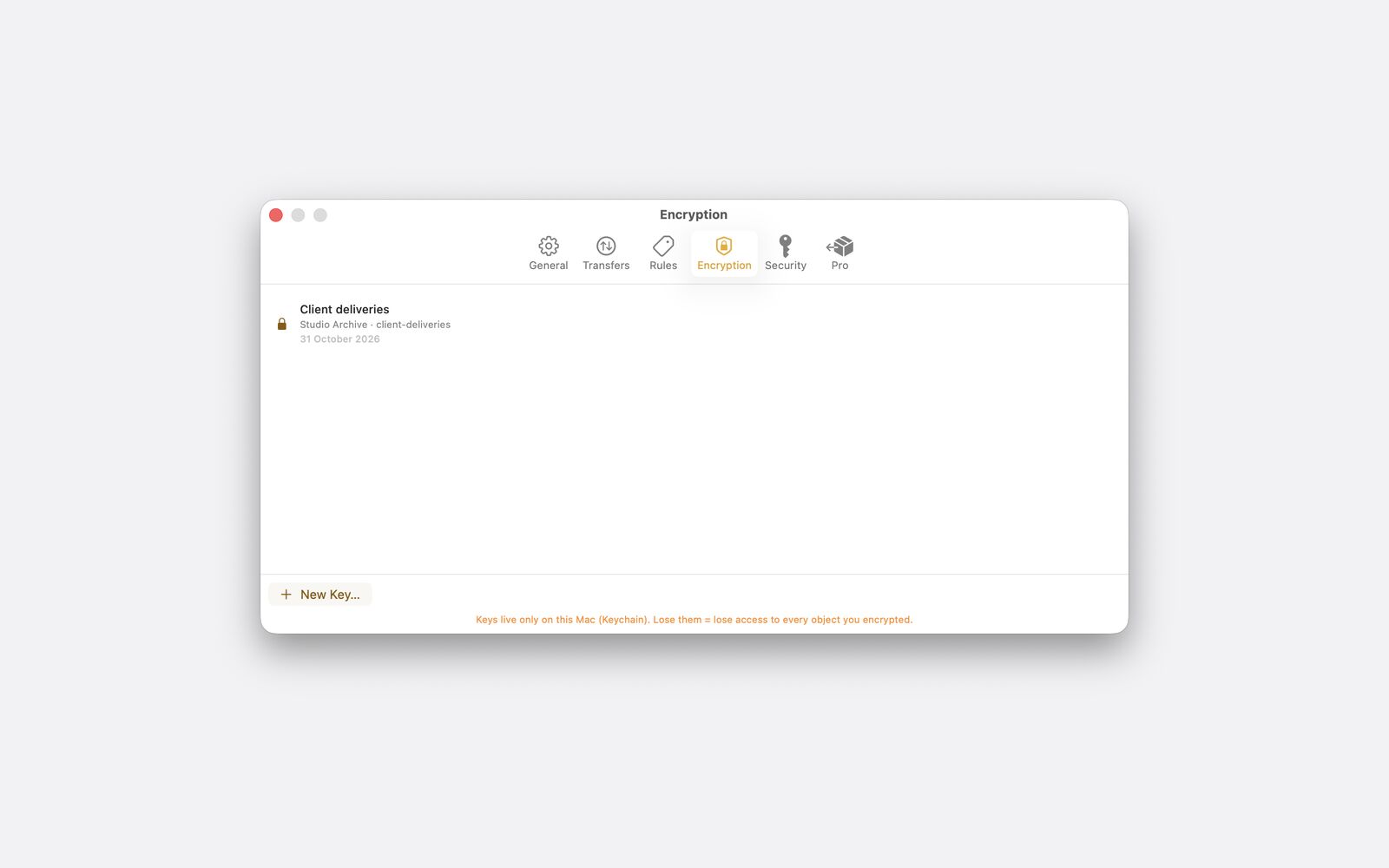
Create a key for a bucket and every upload to it is encrypted on your Mac with AES-256-GCM before it leaves. Downloads are decrypted on the fly. The key stays in the macOS Keychain on this Mac.
- Works with any provider, the provider only sees encrypted data
- Opening and editing in other apps goes through the same encryption
- If you lose the key, nobody can decrypt those objects, including us
- Encrypted buckets cannot be mounted in Finder in this version
How this compares with Cyberduck, CloudMounter
05 / 09
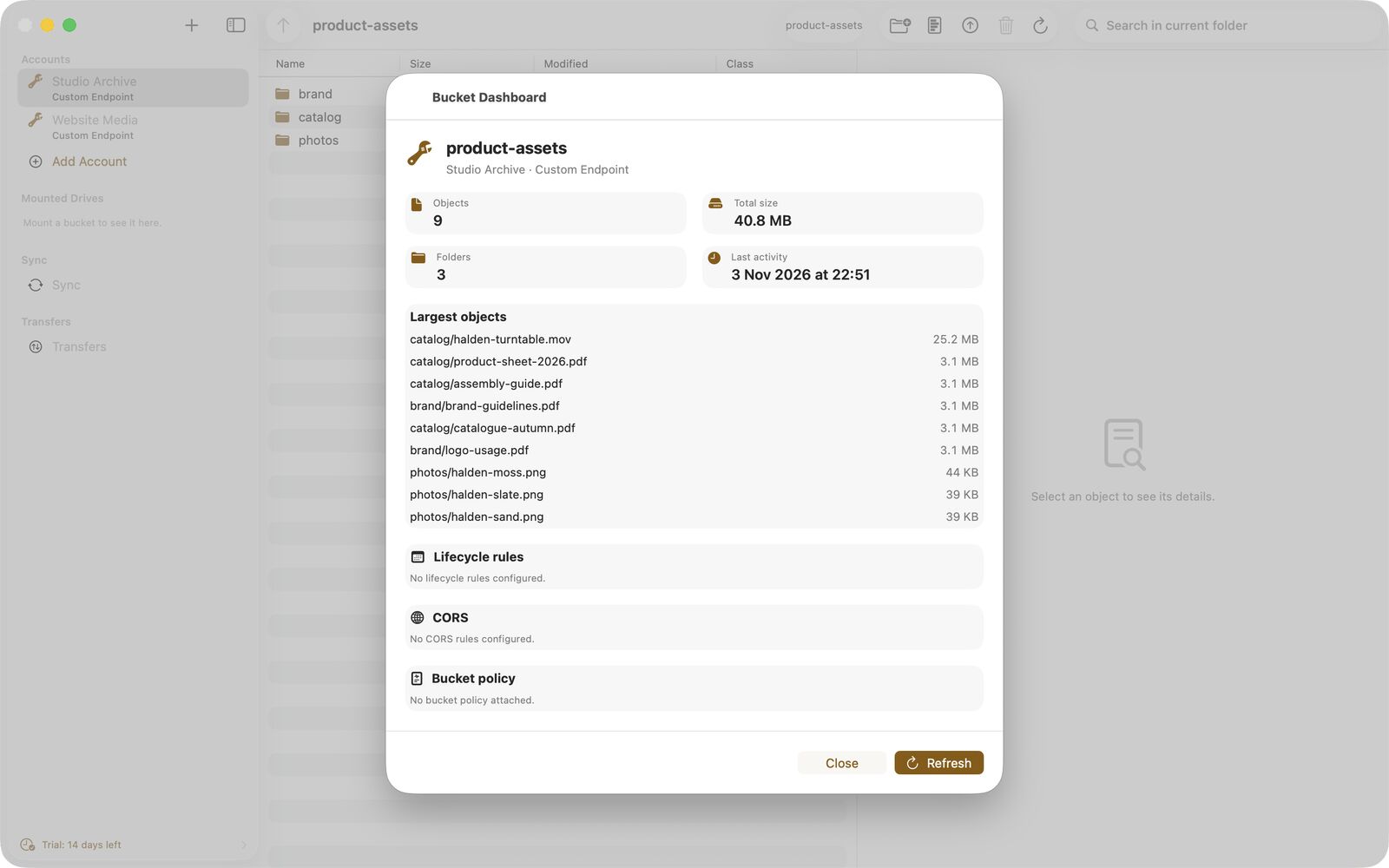
A dashboard for every bucket
The dashboard shows object count, total size, the largest objects and a rough monthly cost estimate, next to the bucket's lifecycle rules, CORS configuration and bucket policy.
- Lifecycle, policy and CORS are shown read-only
- The cost estimate is a rough guide, your provider's bill is what counts
06 / 09
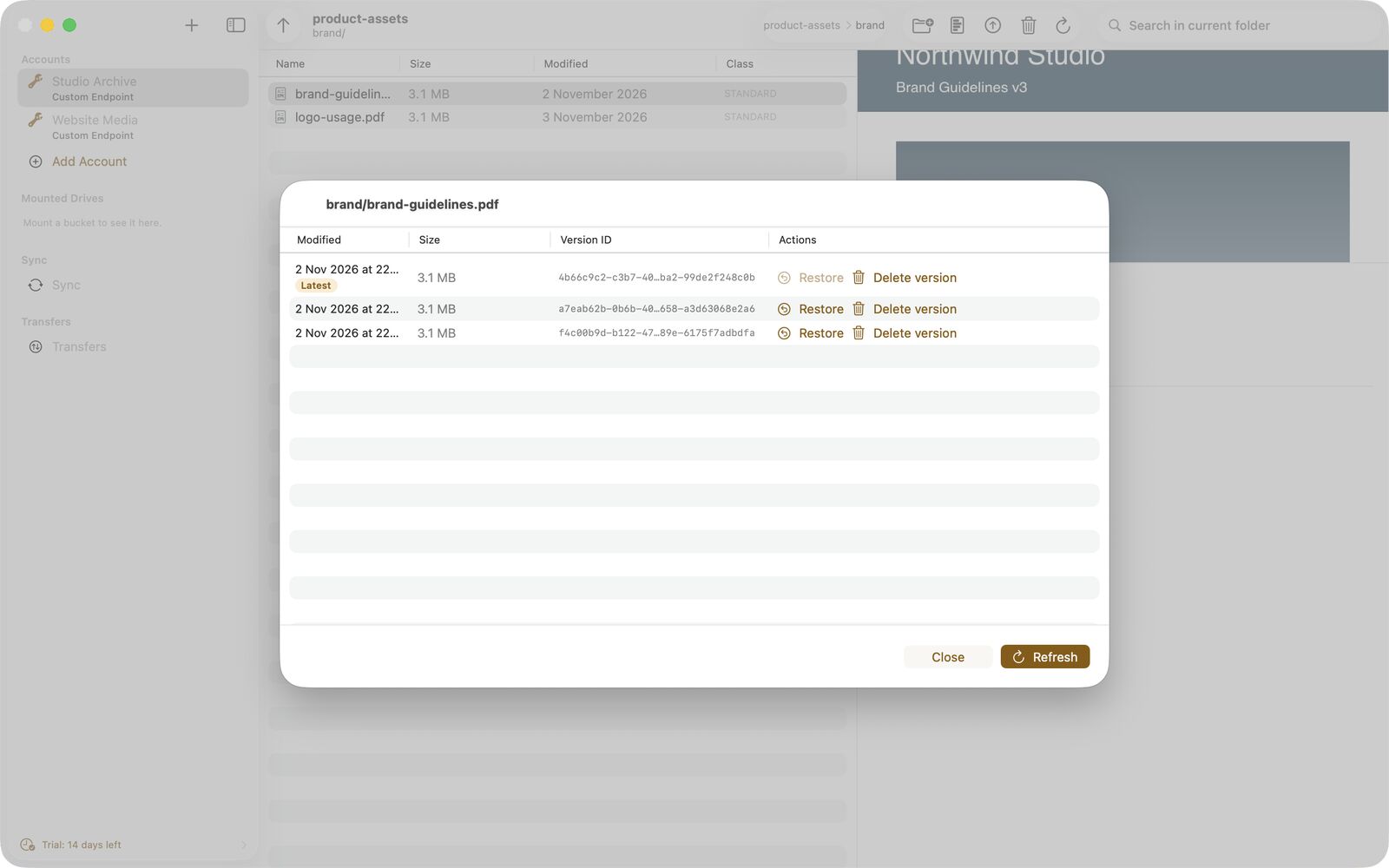
Versions of every object
Show the version history of a file, restore an older version as the new latest copy or delete a single version. The bucket needs versioning enabled at the provider.
- List, restore and delete object versions
- Works on S3 and on Azure Blob Storage where the account supports versions
07 / 09
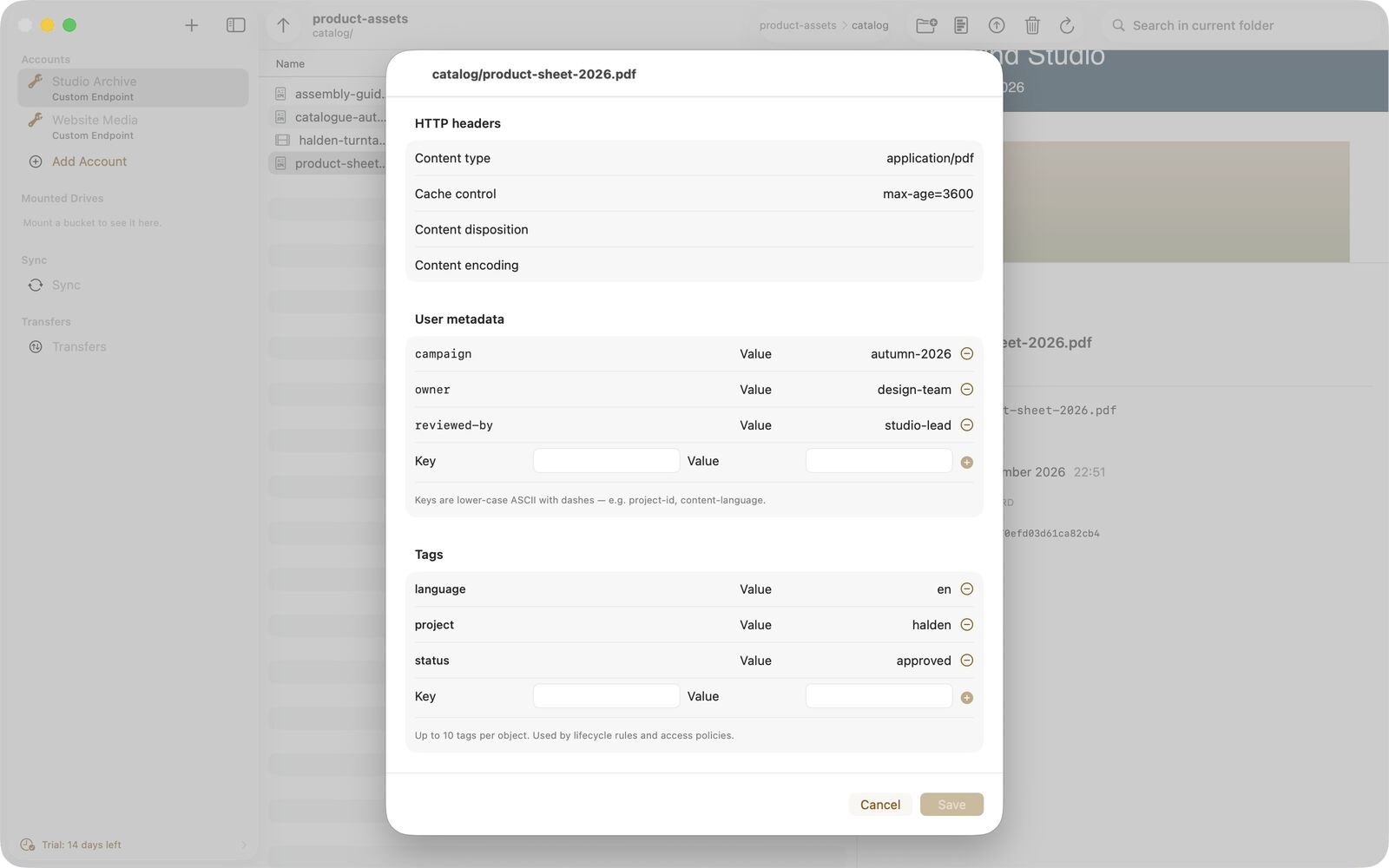
Metadata, tags and auto-tagging
Edit HTTP headers such as content type and cache control, user metadata and tags, and see the storage class. Bucketeer tells you when a provider does not support a field.
- Auto-tagging rules add tags and metadata to new uploads by file name pattern or MIME type
- Rules live in Settings and apply after every successful upload
08 / 09
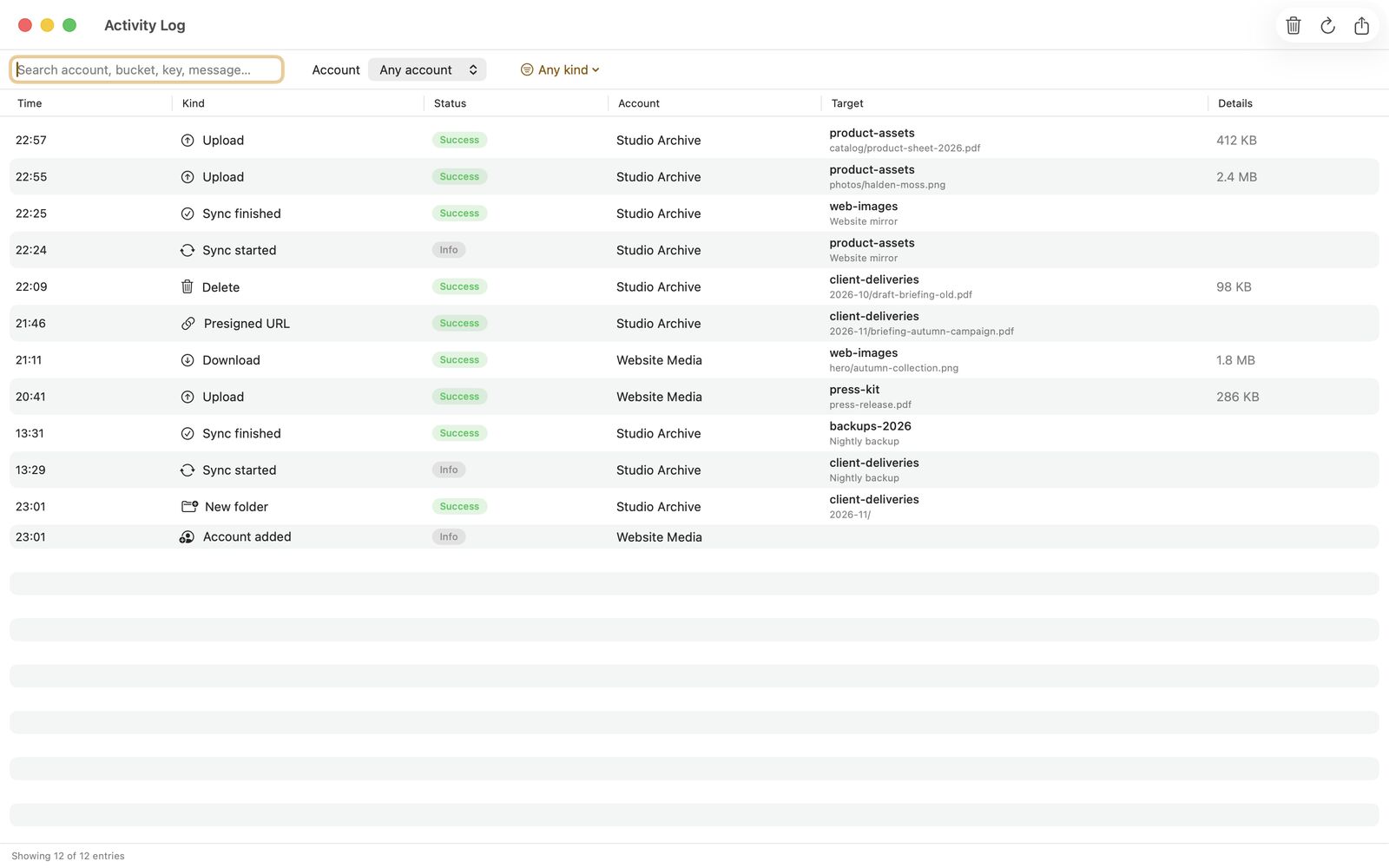
Activity log and trash
The activity log lists uploads, downloads, deletes, sync runs, share links and account changes. You can filter, search and export it as CSV. The trash can keep a local copy of deleted objects so you can put them back.
- Log entries stay on this Mac for 180 days
- Trash entries are removed after the retention period you set, 30 days by default
- The object at the provider is deleted right away, only the local copy can be restored
09 / 09 Pro
Bucketeer Pro, bought once
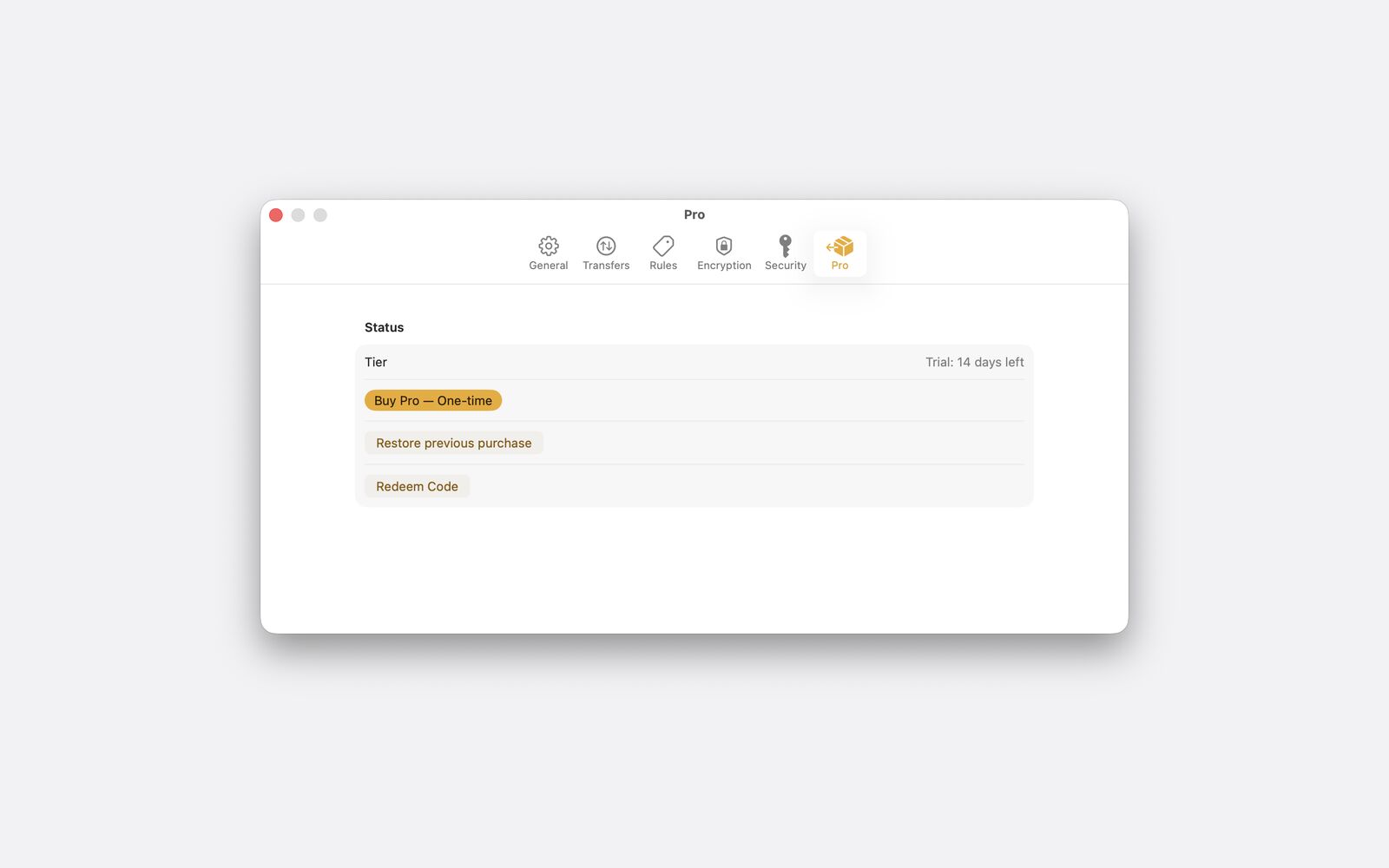
Mount as Drive, sync jobs, watch folders, copy to another account and menu bar mode come with Bucketeer Pro, a single one-time in-app purchase in the Mac App Store. There is no subscription.
- Try Pro for 14 days, once per Apple ID
- After the trial Bucketeer keeps every other feature and nothing is charged
- Restore Purchase brings Pro back on another Mac
And there is more
Open and edit in any Mac app
Double-click an object to open it in its default app, or choose Open With. Each save is uploaded back. If the object changed on the server in the meantime, your version is saved next to it as a conflict copy instead of overwriting it.
Buckets as drives in Finder Pro
Mount as Drive uses the File Provider extension of macOS 14.1 or later, so a bucket or container shows up in Finder. A Finder save over a newer server version becomes a conflict copy.
Fast, resumable transfers
Large files move in parallel parts with live progress. An interrupted upload of 50 MB or more continues where it stopped, also after a restart. A bandwidth limit keeps calls and video meetings smooth.
Share links signed on your Mac
Create S3 presigned URLs and Azure SAS links with an expiry you choose. The link is signed locally with your credentials; anyone who has it can download the file until it expires.
Shortcuts, Siri and Spotlight
Shortcuts actions list buckets, upload a file, create a share link and run a sync job. Spotlight can find the names of objects you browsed, if you turn it on. File contents are never indexed.
Deep links to everything
bucketeer:// links open accounts, buckets, objects, sync jobs, the activity log and the trash from anywhere on your Mac, for example from a note or a ticket.
Privacy
What does Bucketeer do with my data?
Nothing leaves your Mac except the traffic to the storage endpoints you configure and to Apple for purchases. There is no Bucketeer server and no Bucketeer account.
Keys in the Keychain
Access keys, secrets and encryption keys are stored in the macOS Keychain on this Mac and are not synced through iCloud.
No analytics
No analytics, no tracking, no advertising, no crash reporting and no attribution SDKs in the app.
Logs stay local
Activity log, trash, sync jobs and settings live in the app's storage on your Mac and are never sent to us.
Spotlight is opt-in
Spotlight indexing is off by default. When on, only object names are indexed, never contents, and the index stays on this Mac.
Compare
How Bucketeer compares
Side by side with Mac apps people often look at for S3 and cloud storage. Every statement about another product comes from its vendor's own pages.
FAQ
Questions people ask first
What is Bucketeer?
Bucketeer is a native Mac app for object storage. It browses, transfers, mounts and syncs buckets and containers on Amazon S3, Azure Blob Storage and S3-compatible services. It is published by DigitalFreedom Global LLC and distributed only through the Mac App Store.
Which storage providers does Bucketeer support?
Bucketeer has presets for AWS S3, Azure Blob Storage, Civo, Cloudflare R2, Backblaze B2, Wasabi, DigitalOcean Spaces and Storj. The Custom preset connects to MinIO and any other S3-compatible endpoint, with path-style addressing where needed.
Does Bucketeer work with Azure Blob Storage?
Yes. Azure Blob Storage has its own backend in Bucketeer and connects with the storage account name and key. Browsing, transfers, share links as SAS links, versions and sync jobs work with Azure, and a sync job can run between S3 and Azure.
Which macOS version do I need?
Bucketeer needs macOS 14 or later. Mount as Drive needs macOS 14.1 or later, and redeeming offer codes needs macOS 15 or later.
Can I mount a bucket in Finder?
Yes, with Bucketeer Pro. Mount as Drive uses the File Provider extension of macOS, so the bucket appears in Finder like a disk. Server-side changes reach Finder when you refresh the bucket. Buckets with client-side encryption cannot be mounted in this version.
Last updated
Your buckets, right on your Mac.
Bucketeer for macOS 14 or later, distributed only through the Mac App Store.